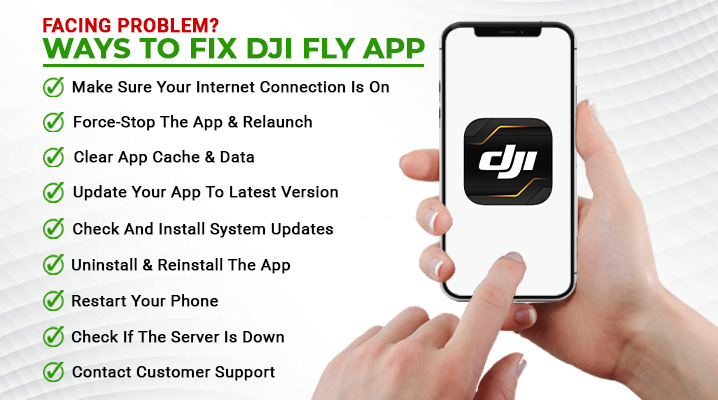
I’m here to shed some light on the common issues that users may encounter with the DJI App and provide solutions to fix them. Whether you’re a beginner or an experienced drone enthusiast, navigating through app problems can be frustrating. From the app not opening to encountering errors and glitches, these issues can hinder your drone flying experience. In this article, I’ll dive into the background of the DJI App, explore the main points of concern, provide examples and visual aids, and wrap it up with a clear conclusion and key takeaways. Additionally, I’ll answer frequently asked questions and encourage you to engage with the content, ensuring that you leave with a better understanding of how to tackle these app issues. So, let’s tackle that first problem: the DJI App won’t open.
Common Issues with DJI App and How to Fix Them

Prime for Young Adults — 6 Months Free
Exclusive Offer Amazon Prime for Young Adults, Students and 18–24s get six months of Prime free, then half price.
Start 6 Months Free As an Amazon Associate I earn from qualifying purchases.Introduction
In the drone industry, the DJI App has become an essential tool for drone pilots, allowing them to control their drones, access flight data, and capture stunning aerial footage. However, like any app, the DJI App is not without its quirks and issues. From app crashes to connection problems, GPS signal issues to video streaming glitches, drone pilots can encounter various challenges when using the DJI App. In this article, I will explore the most common issues with the DJI App and provide step-by-step solutions to fix them, ensuring a smooth flying experience for all drone enthusiasts.
Background
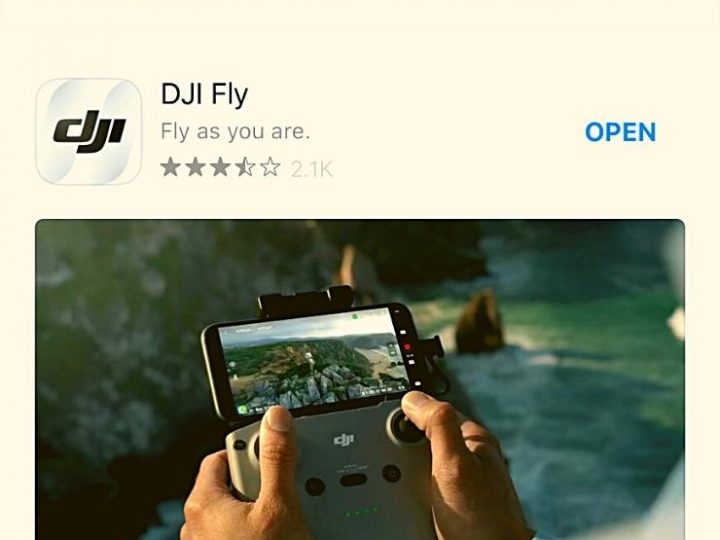
The DJI App is a powerful and feature-rich application that allows drone pilots to have full control over their drones and access real-time flight data. It offers a user-friendly interface, intuitive controls, and a wide range of features for capturing and editing aerial footage. However, despite its many advantages, the DJI App can sometimes present challenges that require troubleshooting. Understanding these issues and knowing how to resolve them is crucial for every drone pilot who relies on the DJI App for their aerial adventures.
Main Points
1. App Crashes
One of the most frustrating issues that users may encounter with the DJI App is frequent crashes. If you find yourself experiencing app crashes, try the following solutions:
1.1 Force Close the App
Force-closing the app can help resolve temporary glitches or conflicts that may be causing the crashes. To force close the DJI App, follow these steps:
- On iOS: Double-press the home button, then swipe up on the DJI App to close it.
- On Android: Open the recent apps menu, then swipe the DJI App away or tap the ‘X’ button to close it.
1.2 Clear App Cache
Clearing the app cache can help resolve issues related to temporary files or corrupted data. To clear the app cache for the DJI App, follow these steps:
- On iOS: Go to Settings > General > Storage > DJI App > Clear App Cache.
- On Android: Go to Settings > Apps > DJI App > Storage > Clear Cache.
1.3 Update the App
Keeping the DJI App updated is essential for ensuring compatibility with your drone and accessing the latest features and bug fixes. To update the DJI App, follow these steps:
Prime for Young Adults — 6 Months Free
Exclusive Offer Amazon Prime for Young Adults, Students and 18–24s get six months of Prime free, then half price.
Start 6 Months Free As an Amazon Associate I earn from qualifying purchases.- On iOS: Go to the App Store, search for the DJI App, and tap ‘Update.’
- On Android: Go to the Play Store, search for the DJI App, and tap ‘Update.’
1.4 Reinstall the App
If all else fails, reinstalling the DJI App may resolve any underlying issues. To reinstall the DJI App, follow these steps:
- On iOS: Press and hold the DJI App icon until it starts to wiggle, then tap the ‘X’ button to delete it. Go to the App Store, search for the DJI App, and tap ‘Install.’
- On Android: Go to Settings > Apps > DJI App > Uninstall. Go to the Play Store, search for the DJI App, and tap ‘Install.’
2. Connection Issues
Another common challenge with the DJI App is connecting to the drone and remote controller. If you’re facing connection issues, try the following solutions:
2.1 Check Wi-Fi or Data Connection
Ensure that your device is connected to a stable Wi-Fi network or has a strong mobile data connection. A weak connection can cause intermittent disconnections or laggy performance. If necessary, switch to a different network or location with better connectivity.
2.2 Restart Drone and Remote Controller
Sometimes, restarting your drone and remote controller can help resolve connection issues. Power off both devices, wait for a few seconds, then power them back on. Ensure that they are in close proximity to establish a stable connection.
2.3 Reset Network Settings
Resetting your device’s network settings can sometimes address connection issues. Be aware that this will remove saved Wi-Fi networks and other network-related configurations. To reset network settings, follow these steps:
- On iOS: Go to Settings > General > Reset > Reset Network Settings.
- On Android: Go to Settings > System > Advanced > Reset Options > Reset Wi-Fi, Mobile & Bluetooth.
2.4 Try Different Device
If you’re still experiencing connection issues, try connecting with a different device. This can help identify whether the problem lies with your current device or the drone itself. Use a compatible device recommended by DJI for optimal compatibility and performance.
3. GPS Signal Problems
A reliable GPS signal is crucial for accurate positioning, flight stability, and intelligent flight modes. If you’re encountering GPS signal problems with the DJI App, try the following solutions:
Prime for Young Adults — 6 Months Free
Exclusive Offer Amazon Prime for Young Adults, Students and 18–24s get six months of Prime free, then half price.
Start 6 Months Free As an Amazon Associate I earn from qualifying purchases.3.1 Calibrate the Compass
Calibrating the compass can help ensure accurate GPS positioning. To calibrate the compass, follow the instructions provided by DJI in your drone’s user manual or the DJI App.
3.2 Enable GPS Permissions
Ensure that the DJI App has the necessary permissions to access your device’s GPS. Go to your device’s settings, find the DJI App, and make sure that GPS permissions are enabled.
3.3 Check for Interference
GPS signal interference can occur due to nearby electromagnetic sources, such as power lines or radio towers. Avoid flying in areas with significant electromagnetic interference to ensure a strong GPS signal.
3.4 Update Firmware
Updating your drone’s firmware can address GPS-related issues. Check DJI’s website or the DJI App for firmware updates specific to your drone model, and follow the instructions provided to update the firmware.
4. App Freezing or Lagging
Experiencing app freezing or lagging can hinder your ability to control the drone or access important features. If your DJI App is freezing or lagging, try the following solutions:
4.1 Close Other Running Apps
Closing other running apps in the background can free up system resources and improve the DJI App’s performance. On your device, swipe up or access the recent apps menu, then close any unnecessary apps.
4.2 Clear App Data
Clearing the app data can help eliminate any corrupted or conflicting data that may be causing the app to freeze or lag. Be aware that clearing app data will remove any saved preferences or settings. To clear app data for the DJI App, follow these steps:
- On iOS: Go to Settings > General > Storage > DJI App > Clear App Data.
- On Android: Go to Settings > Apps > DJI App > Storage > Clear Data.
4.3 Disable Background App Refresh
Disabling background app refresh can reduce the strain on your device’s resources and may improve the DJI App’s performance. To disable background app refresh, follow these steps:
- On iOS: Go to Settings > General > Background App Refresh > Toggle off the DJI App.
- On Android: Go to Settings > Apps > DJI App > Battery > Background Restriction > Toggle on.
4.4 Close and Restart the App
Simply closing and restarting the DJI App can sometimes resolve freezing or lagging issues. Force close the app as mentioned earlier, then relaunch it and check if the problem persists.
5. Inaccurate Flight Data
Accurate flight data is crucial for monitoring the drone’s performance and ensuring safe flights. If you’re experiencing inaccurate flight data in the DJI App, try the following solutions:
5.1 Calibrate IMU
Calibrating the Inertial Measurement Unit (IMU) can help ensure accurate flight data. Refer to your drone’s user manual or the DJI App’s instructions for the IMU calibration process specific to your drone model.
5.2 Calibrate Gimbal
A misaligned or uncalibrated gimbal can affect the accuracy of flight data. Follow the gimbal calibration instructions provided by DJI in your drone’s user manual or the DJI App.
5.3 Check Sensor Connections
Ensure that all sensor connections on your drone are secure and free from debris. Loose or faulty connections can lead to inaccurate flight data. Inspect the drone’s sensors and connectors, and clean them if necessary.
6. Battery and Power Issues
Battery and power issues can significantly impact your drone’s flight time and performance. If you’re facing battery or power-related problems with the DJI App, try the following solutions:
6.1 Ensure Battery is Fully Charged
Ensuring that your drone’s battery is fully charged before each flight is essential for optimal performance. Use a reliable charger recommended by DJI and follow the charging instructions provided with your drone.
6.2 Check Battery Connection
Ensure that the battery is securely connected to the drone. Loose connections can cause power interruptions and affect the performance of the DJI App. Double-check the battery’s connection to the drone and ensure it is securely latched.
6.3 Update Battery Firmware
Updating the battery’s firmware can address potential power-related issues. Check DJI’s website or the DJI App for firmware updates specific to your drone’s battery, and follow the instructions provided to update the firmware.
6.4 Power Cycle Drone and Remote Controller
Power cycling both the drone and the remote controller can help resolve minor power-related issues. Power off both devices, wait for a few seconds, then power them back on and check if the problem persists.
7. Incompatibility with Device
Different devices may have varying levels of compatibility with the DJI App. If you’re facing compatibility issues, try the following solutions:
7.1 Check Device Compatibility
Ensure that your device is listed as compatible with the DJI App. Check DJI’s website or the app’s official documentation for a list of compatible devices.
7.2 Update Device Software
Keeping your device’s software up to date can address compatibility issues. Check for any available software updates for your device and install them.
7.3 Use Recommended Devices
If compatibility issues persist, consider using a device recommended by DJI for the best performance and compatibility. These recommended devices are tested and optimized for use with the DJI App.
8. Lack of GPS Data
A lack of GPS data can hinder the DJI App’s functionality and access to certain features. If you’re not receiving GPS data in the DJI App, try the following solutions:
8.1 Check Satellite Signal
Ensure that your drone is receiving a strong satellite signal. Fly your drone in an open area away from tall buildings or obstructive structures to improve GPS reception.
8.2 Enable Location Services
Ensure that location services are enabled for the DJI App. Go to your device’s settings, find the DJI App, and make sure that location services are enabled.
8.3 Reset Location Settings
Resetting your device’s location settings can help resolve issues related to GPS data. To reset location settings, follow these steps:
- On iOS: Go to Settings > General > Reset > Reset Location & Privacy.
- On Android: Go to Settings > System > Advanced > Reset Options > Reset App Preferences.
9. Video Streaming Problems
The DJI App allows for live video streaming from your drone, but sometimes issues can arise. If you’re experiencing video streaming problems, try the following solutions:
9.1 Check Wi-Fi Signal Strength
Ensure that your device has a strong Wi-Fi signal from the drone. Weak Wi-Fi signals can result in laggy or interrupted video streaming. Keep your device within a reasonable range of the drone to maintain a strong Wi-Fi connection.
9.2 Adjust Video Quality Settings
Lowering the video quality settings in the DJI App can help address video streaming problems, especially if you have a weaker device or poor network conditions. Find the video quality settings in the DJI App’s preferences and lower the resolution or frame rate.
9.3 Update Firmware
Updating your drone’s firmware can address video streaming issues related to compatibility. Check for available firmware updates for your drone and follow the instructions provided to update the firmware.
9.4 Clear Cache and Data
Clearing the app cache and data as mentioned earlier can also help resolve video streaming problems. Follow the steps mentioned earlier for your respective device to clear the app cache and data for the DJI App.
10. App Login Issues
If you’re having trouble logging into the DJI App, try the following solutions:
10.1 Verify Account Credentials
Double-check the account credentials you are using to log into the DJI App. Ensure that the username and password are correct, and pay attention to case sensitivity.
10.2 Reset Password
If you’ve forgotten your password, use the password reset option provided in the DJI App. Follow the prompts to reset your password and try logging in again.
10.3 Check DJI Server Status
Sometimes, login issues can be due to server maintenance or other temporary server-related problems. Check the DJI website or official social media accounts for any announcements regarding server status.
Conclusion
The DJI App is undoubtedly a powerful tool for drone pilots, allowing them to unlock the full potential of their drones. However, as with any technology, issues can arise from time to time. By following the troubleshooting steps provided in this article, drone pilots can address common issues with the DJI App and ensure a smooth and enjoyable flying experience.

FAQs
What are the basics one should know about this topic?
The DJI App is a key tool for drone pilots, offering control over drones, access to flight data, and the ability to capture aerial footage. Understanding the common issues and troubleshooting solutions is important for a seamless user experience.
Are there any common misconceptions related to this topic?
A common misconception may be that all issues related to the DJI App are necessarily caused by the app itself. However, the issues can also stem from device compatibility, network connectivity, or drone-related factors.
How is this topic relevant to the current drone industry?
The DJI App is widely used in the drone industry, and being aware of its common issues and fixes is valuable knowledge for all drone pilots. Understanding how to troubleshoot these issues can help pilots overcome obstacles and make the most of their drone’s capabilities.
What are the future prospects or developments expected in this area?
With the rapid advancements in drone technology, it is expected that the DJI App will continue to evolve and improve. Drone manufacturers like DJI often release firmware updates and app upgrades to address user feedback and introduce new features.
How can someone get involved or learn more about this topic?
To learn more about the DJI App and its features, users can refer to the DJI website, official documentation, and user communities. Online forums and social media groups focused on drones and DJI products are excellent resources for gaining insights from experienced users.
Call to Action
Are you ready to take your drone flying experience to the next level? Don’t let common issues with the DJI App hold you back. By following the troubleshooting steps provided in this article, you can overcome these challenges and enjoy seamless control over your drone. Let’s soar to new heights together!