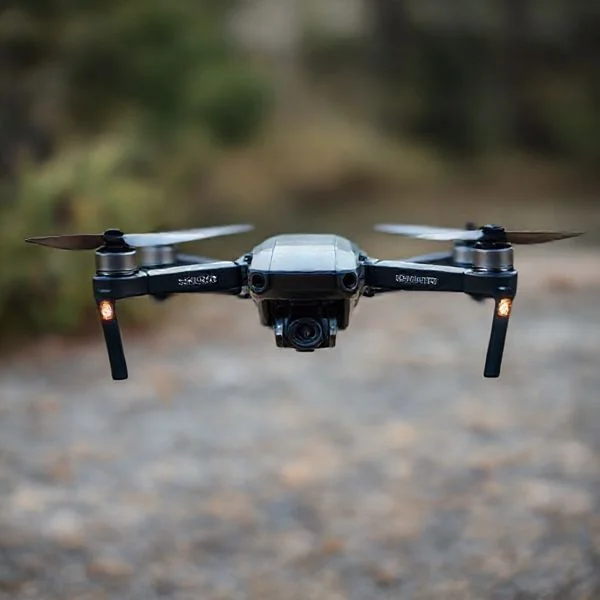
Most GoPro Karma flight issues stem from outdated firmware or compass interference, which can often be resolved through specific reset sequences. Ensuring clean gimbal connections and updated GPS maps is critical for maintaining hardware stability and flight safety.
🎯 Key Takeaways
- Update controller and drone firmware simultaneously to prevent pairing failures.
- Perform compass calibration away from large metal structures or magnets.
- Use isopropyl alcohol to clean gimbal pins if video flickers.
- The ‘No GPS’ bug often requires a factory reset and outdoor acquisition.
- Check battery health for swelling to prevent mid-air power loss.
To get your Karma technical specifications and product history”>GoPro Karma flight-ready, you must focus on three core technical areas: the controller-to-drone handshake, sensor synchronization (IMU/Compass), and resolving the infamous “No GPS” satellite acquisition bug. Most Karma failures are not caused by physical damage but by software desynchronization or outdated firmware that prevents the drone from clearing its pre-flight checklist. By systematically resetting the connection and refreshing the internal sensors, you can bypass the “Unable to Launch” errors that frequently ground this platform.

Understanding these fixes is critical because the Karma relies heavily on a “Perfect Lock” system. If the GPS signal is weak or the pairing is unstable, the drone will lock its motors to prevent a flyaway. Mastering these troubleshooting steps allows you to reclaim control over your hardware, ensuring that safety features like Return to Home (RTH) are fully functional before you ever leave the ground. Following a specific order of operations is the only way to isolate whether your issue is a simple software glitch or a hardware component that needs replacement.
Prime for Young Adults — 6 Months Free
Exclusive Offer Amazon Prime for Young Adults, Students and 18–24s get six months of Prime free, then half price.
Start 6 Months Free As an Amazon Associate I earn from qualifying purchases.Deciphering Common GoPro Karma Error Codes and Status Lights
Recommended Best Deal Products

The GoPro Karma communicates its health through a combination of LED patterns on the drone arms and specific text alerts on the integrated controller screen. Ignoring these signals can lead to mid-air disconnects or erratic flight behavior. Before diving into deep software resets, you must identify whether the issue is a simple communication lag or a critical hardware sensor failure. The controller will often provide a “System Health” checklist; if any item is red, the drone will refuse to arm the motors.
Interpreting LED Patterns and Controller Alerts
Your first diagnostic step is observing the lights on the Karma’s four arms. These LEDs provide immediate feedback on the drone’s internal state, even if the controller screen is frozen or failing to sync. If you see flashing red lights on all arms, the system has detected a critical error, often related to the battery self-test. A solid blue light on the back indicates a successful link with the controller, while blinking blue means it is actively searching for a connection.
- Rapid Red Flashing: This indicates a critical system failure or a depleted battery. Check the controller for a specific “System Error” code. This often occurs if the flight battery is not fully seated in the tray.
- Blinking Yellow: The drone is in RC Lost mode. This usually triggers if your controller loses its 2.4GHz connection or if the environment has high radio interference.
- On-Screen “Compass Interference”: This indicates the internal magnetometer is near metal or magnetic sources. Move the drone at least 20 feet away from cars, reinforced concrete, or manhole covers.
- “No GPS” Warning: This is a notorious firmware bug. Even in clear skies, the drone may show zero satellites. This typically requires a hard reset or a manual firmware refresh via the GoPro Quik desktop software.
Fixing the Pairing Failure Loop
If your controller displays a “Searching for Drone” message indefinitely, the pairing registry has likely become corrupted. This often happens after a long period of storage or after updating the controller firmware without simultaneously updating the drone. To fix this, you must manually trigger the pairing mode. Hold the power button on the Karma drone for 8 to 10 seconds until the arm lights pulse blue in a breathing pattern. Simultaneously, navigate to the “Connect” menu on your Karma controller and select “Pair.” If the units still fail to see each other, you must perform a factory reset on the controller to clear the connection cache and restart the handshake process from scratch.
Your Complete DIY Guide to GoPro Karma Drone Troubleshooting
The GoPro Karma drone is a unique piece of engineering that integrates seamlessly with the HERO camera ecosystem, but it is also known for its occasional technical hiccups. Whether you are experiencing GPS signal loss, “Gimbal Not Detected” errors, or connectivity drops between the controller and the craft, this guide provides a systematic approach to identifying and fixing common issues. Following these steps in order will help you isolate hardware failures from software glitches, ensuring your next flight is safe, stable, and productive without having to send your unit back for expensive repairs.
Step 1: Rectifying Compass and GPS Calibration Errors
What you need: An open outdoor space far from large metal structures, power lines, or magnetic interference, and a fully charged Karma Controller.
Instructions: One of the most common issues with the Karma is the “Compass Calibration Required” message. To resolve this, power on your drone and controller in a clear field. Navigate to the “Learn” or “Settings” menu on the controller and select “Compass Calibration.” When prompted, pick up the drone and rotate it 360 degrees horizontally until the lights flash green, then rotate it vertically (nose down) 360 degrees. If the calibration fails, move at least 50 feet away from your current spot—underground rebar in concrete is a frequent hidden culprit. Ensure your Karma has a clear view of the sky to acquire at least 10 satellites before attempting to arm the motors, as GPS stabilization is critical for the “Return to Home” feature.
Pro Tip: Never calibrate your drone near your car or large electronic devices, as the electromagnetic field will skew the internal magnetometer sensors, leading to “toilet bowl” circling during flight.
Prime for Young Adults — 6 Months Free
Exclusive Offer Amazon Prime for Young Adults, Students and 18–24s get six months of Prime free, then half price.
Start 6 Months Free As an Amazon Associate I earn from qualifying purchases.Step 2: Resolving Gimbal Connection and Horizon Tilt Issues
What you need: The Karma Drone, the Karma Stabilizer (gimbal), your GoPro camera, and a clean microfiber cloth.
Instructions: If your controller displays a “Gimbal Disconnected” error or if your footage has a crooked horizon, the issue is likely physical. Power down the drone and remove the stabilizer by turning the locking ring counter-clockwise. Inspect the gold-plated contact pins inside the drone’s nose and on the gimbal itself. Use a microfiber cloth (and a drop of 90% isopropyl alcohol if necessary) to gently clean these contacts. Re-insert the stabilizer firmly and lock the ring. Power the drone back on and perform a “Stabilizer Calibration” from the settings menu. This forces the brushless motors to find their zero-point. If the tilt persists, ensure the GoPro is fully seated in the harness, as even a millimeter of offset can throw off the balance.
Pro Tip: If the gimbal feels “limp” after a hard landing, check the internal ribbon cable for micro-tears; these are often the source of intermittent video feed cutouts.
Step 3: Troubleshooting Battery Authentication and Power Failures
What you need: GoPro Karma Flight Battery, Karma Charger, and a firm flat surface.
Instructions: Karma batteries are “smart” batteries that can sometimes enter a “hibernation” or “error” state, indicated by specific LED flashing patterns. If your battery won’t charge or the drone won’t power on, first check the battery seating. Press the battery into the drone until you hear a distinct “click”—the Karma is notorious for power loss if the battery isn’t perfectly flush. If the LEDs flash red, connect the battery to the official Karma charger and leave it for at least 2 hours. This can sometimes reset the internal Battery Management System (BMS). If the drone powers off mid-flight, inspect the copper connectors on the battery for signs of carbon scoring or melting, which indicates a high-resistance connection that needs professional replacement.
Pro Tip: Always power on the controller FIRST, then the drone. This sequence ensures the drone’s receiver is immediately greeted by a handshake signal, preventing “Binding” errors.
Step 4: Fixing Controller Connectivity and Pairing Glitches
What you need: Karma Controller and the Karma Drone.
Prime for Young Adults — 6 Months Free
Exclusive Offer Amazon Prime for Young Adults, Students and 18–24s get six months of Prime free, then half price.
Start 6 Months Free As an Amazon Associate I earn from qualifying purchases.Instructions: If your controller cannot find the drone, or if the video lag is exceeding two seconds, you need to force a re-pairing. With both units off, turn on the controller and navigate to the “Connect” section in the settings. Put the controller into “Pairing Mode.” Now, press and hold the power button on the Karma drone for 8 to 10 seconds until the orientation lights start pulsing in a back-and-forth pattern. The controller should vibrate and confirm that the drone has been found. If the connection remains weak, check the area for high Wi-Fi congestion. The Karma operates on the 2.4GHz band, and flying near high-density apartment complexes can cause significant signal “noise” that overwhelms the drone’s receiver.
Pro Tip: Ensure the controller’s antennas are pointed vertically (upward) rather than directly at the drone for the best signal propagation patterns.
Step 5: Updating Firmware for System Stability
What you need: A stable Wi-Fi connection, the Karma Controller, the drone, and the stabilizer.
Instructions: Many “bugs” in the Karma system, such as erratic flight behavior or camera freezing, are solved through firmware updates. Connect your Karma Controller to a reliable Wi-Fi network. Navigate to “Settings” then “Software Update.” The controller will automatically check if the drone, the stabilizer, and the controller itself are running the latest versions. It is vital to have at least 50% battery on both the drone and the controller before starting this process. Do not turn off either device during the update, as this can “brick” the motherboard. The drone will reboot several times and the lights will flash different colors; this is normal. Once the controller shows “Update Successful,” perform a full restart of the entire system.
Pro Tip: If an update fails repeatedly, try using a mobile hotspot instead of home Wi-Fi, as some router firewalls block the GoPro update servers.
Step 6: Inspecting and Replacing Propellers and Motors
What you need: A set of Karma Propellers (Clockwise and Counter-Clockwise) and a damp cloth.
Instructions: Mechanical vibration is a leading cause of flight controller “confusion.” Inspect your propellers for any chips, hairline cracks, or “leading edge” erosion. Even a tiny nick can cause high-frequency vibrations that interfere with the internal accelerometers. Ensure you are matching the prop colors: Silver-ringed props go on the motors with silver markings, and Gold-ringed props go on the motors with gold markings. Hand-tighten them firmly; they are self-tightening, so do not over-torque them. Next, with the drone off, spin each motor by hand. They should spin freely with a slight “notchy” magnetic resistance. If a motor feels gritty or stops abruptly, there may be sand or debris inside the bell. Use compressed air to blow out the motor housing.
Pro Tip: Replace your propellers every 20-30 flights regardless of appearance, as “prop fatigue” can lead to a blade snapping mid-air due to centrifugal force.
Step 7: Performing a Factory Reset (The Last Resort)
What you need: Karma Controller and a backup of any flight logs you wish to keep.
Instructions: If you have exhausted all other steps and the drone still behaves erratically or the controller software is lagging, a factory reset is necessary. On the controller, go to “Settings,” then “About,” and select “Factory Reset.” This will wipe all saved Wi-Fi passwords, flight logs, and custom settings. It reverts the Android-based operating system of the controller to its “out-of-the-box” state. After the reset, you will need to log back into your GoPro account and re-pair the drone as if it were brand new. This process often clears out “cached” errors in the flight controller’s memory that survive standard power cycles. After the reset, immediately check for software updates again to ensure you aren’t running an obsolete base version.
Pro Tip: Before doing a factory reset, try simply “Forgetting” your local Wi-Fi network, as constant background scanning for internet can sometimes cause the controller’s CPU to throttle, mimicking a hardware lag.
✅ Final Checklist
- Verify that the “Gimbal Not Detected” error is gone and the camera feed is active.
- Confirm the GPS icon on the controller is green and shows at least 10 satellites.
- Ensure all four propellers are color-matched to their respective motors and tightened.
- Check that the battery is flush with the drone body and the locking clip is engaged.
- Test the “Easy Launch” button to ensure the motors arm and spin at idle speed correctly.
Important Notes:
- Safety First: Never troubleshoot or spin the motors with the propellers attached while indoors or near people/pets.
- Professional Help: If you see a “Mechanical Failure” error or smell burning electronics (ozone), stop immediately. This indicates a short circuit that requires GoPro Support or a professional drone technician.
- Estimated Time: A full troubleshooting sequence usually takes 45 to 90 minutes.
- Cost Range: Troubleshooting is free, but replacement propellers cost approximately $20, and a new flight battery ranges from $80 to $100.
Critical Hardware Factors Affecting Flight Stability and Gimbal Performance
The Karma’s flight stability depends entirely on the health of its Inertial Measurement Unit (IMU) and the physical connection of the Karma Stabilizer. If these hardware components are not perfectly calibrated or seated, you will experience the “toilet bowl effect” (spiraling) or a severe horizon tilt in your footage. These are often hardware-induced errors that can be solved with manual adjustments and physical cleaning rather than complex software patches.
Solving the IMU and Compass Calibration Loop
The IMU is the drone’s “inner ear,” and the compass is its “eyes” for orientation. If the controller asks for calibration every time you power on, your internal sensors are struggling with local interference or data corruption. To break this loop, you must perform a “clean” calibration. This means taking the drone to a wide-open field away from all electronics, cell towers, and underground power lines which can distort the magnetometer readings.
- Level Surface: Always place the Karma on a perfectly flat, non-metallic surface for IMU calibration. Even a slight 2-degree tilt during this process can cause the drone to drift constantly in one direction during flight.
- The “Karma Dance”: When the controller prompts you to calibrate the compass, rotate the drone slowly and steadily. Rapid or jerky movements can cause the sensor to misread the Earth’s magnetic field, leading to a “Calibration Failed” message.
- Temperature Acclimation: If you move the drone from a warm car to a cold flight field, let it sit for 10 minutes before calibrating. Rapid temperature shifts cause the sensors to expand or contract, which confuses the IMU calibration data.
Stabilizing the Gimbal and Connector Pins
A “Gimbal Error” on the screen usually points to a physical connection issue between the Karma Stabilizer and the drone’s nose. The proprietary connector pins are highly sensitive to dust and microscopic debris. If your gimbal is limp, vibrating, or failing to respond to the controller wheel, remove the stabilizer and inspect the gold contact pins. Use a small amount of 90% isopropyl alcohol on a cotton swab to clean the contacts on both the drone body and the gimbal arm. Ensure the locking ring is fully rotated to the “locked” position; a partial lock will cause intermittent power loss, resulting in shaky video or the “Gimbal Not Detected” alert. If the gimbal still fails, check the GoPro camera’s USB-C port for any lint or obstructions that might prevent a data handshake.
Software Compatibility: The Role of Quik Desktop and Controller Firmware
One of the most overlooked aspects of Karma troubleshooting is the underlying software ecosystem. Unlike newer drones that rely solely on mobile apps, the Karma ecosystem is a delicate balance between the drone’s internal hardware, the controller, and your GoPro camera. When these components aren’t “speaking the same language,” you’ll often encounter intermittent pairing drops or a failure to recognize the gimbal. Because GoPro has transitioned away from the Karma line, ensuring you are using the correct legacy software versions is more critical than ever.
The Digital Handshake Between Devices
Think of firmware as the translator for your drone. If your HERO camera has the latest firmware but your Karma controller is running an outdated version, the “handshake” fails. This often manifests as a black screen on the controller or a message stating the camera is disconnected even when it’s physically plugged in. Keeping your Quik for Desktop software updated (specifically the version tailored for Karma) ensures that the controller can properly bridge the gap between the drone’s flight systems and the camera’s video feed.
- Version Parity: Always ensure the controller and drone are updated simultaneously to prevent communication lag.
- Gimbal Recognition: Software mismatches are the leading cause of “Gimbal Not Found” errors.
- Battery Intelligence: Firmware updates often include critical fixes for the Karma’s smart battery management system.
Syncing Your Hardware Ecosystem
Practical experience shows that many GPS and pairing issues stem from a corrupted update file. If your controller feels sluggish or the GPS signal fluctuates wildly despite being in an open field, the software might be the culprit rather than the hardware. A clean sync using a stable Wi-Fi connection is often the “reset button” the system needs to stabilize its internal sensors and radio frequencies.
Environmental and Magnetic Interference: Impact on Compass and GPS
The GoPro Karma is particularly sensitive to its surroundings. Because it relies on a combination of GPS satellites and an internal compass to maintain stability, external interference can lead to “toilet bowling” (the drone circling uncontrollably) or a total loss of connection. Understanding your environment is just as important as checking your battery levels before a flight.
Identifying Hidden “Dead Zones”
Interference isn’t always visible. You might be standing in a beautiful park, but if there are high-voltage power lines nearby or large underground metal deposits, your Karma’s compass will struggle. Magnetic interference can “confuse” the drone, leading it to believe it is facing one direction while the GPS coordinates suggest another. This conflict is a primary cause of fly-away scares and pairing disconnects mid-flight.
- Metallic Structures: Avoid launching from reinforced concrete surfaces, as the rebar inside can distort compass readings.
- Signal Crowding: In dense urban areas, the 2.4GHz frequency used by the Karma can be overwhelmed by local Wi-Fi routers.
- Solar Activity: High solar flare activity (KP-index) can occasionally degrade GPS accuracy globally, affecting drone stability.
Why Open Spaces Matter for GPS Locking
The Karma requires a strong “lock” on multiple satellites before it allows for safe takeoff features like Return to Home. Tall buildings or dense tree canopies create what is known as the “urban canyon” effect, reflecting GPS signals and providing inaccurate positioning data. For the most stable flight, a clear 360-degree view of the sky isn’t just a recommendation; it is a technical necessity for the Karma’s aging but capable GPS module.
Final Thoughts on Mastering Your Karma
Troubleshooting the GoPro Karma requires a mix of technical updates and environmental awareness. By focusing on software synchronization and being mindful of magnetic interference, you can resolve the majority of pairing and GPS frustrations that ground many pilots. This drone remains a unique piece of kit for GoPro enthusiasts, offering a cinematic perspective that modern “all-in-one” drones often lack.
Before your next session, take a moment to verify your firmware and scout your launch location for potential interference. Ready to get back in the air? Take these tips into the field, ensure your sky is clear, and enjoy the smooth, stabilized footage that only a well-tuned Karma can provide.
❓ Frequently Asked Questions
How do I fix the ‘Pairing Failed’ loop on the GoPro Karma?
Ensure both the drone and controller are running the latest firmware versions via the GoPro Quik desktop software. Reset both devices and attempt the pairing process in an area with minimal Wi-Fi interference to ensure a clean signal.
What should I do if my Karma gimbal isn’t leveling correctly?
First, inspect the stabilizer connector pins for debris and ensure the camera is fully seated in the harness. If physical connections are clean, perform a gimbal calibration through the controller settings menu while the drone is on a level surface.
Why does my GoPro Karma lose GPS signal mid-flight?
This is often caused by local magnetic interference or the age of the GPS module hardware. To mitigate this, avoid flying near cell towers or large metal structures and ensure your ‘Home Link’ is established before takeoff.
Can I still update the Karma firmware since it was discontinued?
Yes, GoPro still provides the final firmware versions through the Quik desktop application. Keeping your software updated is the most effective way to resolve legacy bugs and communication errors between the drone and controller.
Why is my Karma battery not charging to 100%?
The battery management system (BMS) may be out of sync, or the lithium-ion cells may be degrading. Try a full discharge-recharge cycle once; however, if the battery shows any signs of bloating, it must be replaced immediately for safety.
Is there a way to fix the ‘Compass Calibration Required’ loop?
Move at least 50 feet away from reinforced concrete, cars, and electronics before starting the calibration. If the error persists regardless of location, a factory reset of the controller might be necessary to clear cached sensor data.