GoPro Karma Drone Quick Start Guide: Setup & First Flight
Commercial UAV Pilot & Aerial Cinematography Specialist at Drone Nestle · FAA Part 107 Remote Pilot Certification, Commercial UAS Operations · 10+ Years in Commercial UAV Operations, Flight Hardware Benchmarking & 4K Aerial Cinematography
To get your GoPro Karma airborne quickly, prioritize correct propeller installation and a stable GPS connection before takeoff. Ensure the Karma Stabilizer is fully locked and the camera is securely mounted to prevent mid-flight gimbal errors.
🎯 Key Takeaways
- Match color-coded propellers to the correct motors before tightening.
- Fully charge both drone and controller batteries simultaneously to save time.
- Calibrate the compass in an open area away from large metal objects.
- Wait for a solid green GPS indicator before initiating takeoff.
- Use the built-in flight simulator to practice controls before actual flight.
To get your Karma hardware specifications and history”>GoPro Karma drone in the air quickly, you need to focus on three specific physical components: the airframe, the stabilizer, and the camera harness. Unlike most modern folding drones, the Karma requires a specific mechanical sequence to ensure the arms are locked and the gimbal is electronically seated. Skipping a single click during the harness installation can result in a “Camera Disconnected” error once you are mid-flight, so precision during these first five minutes is essential for a successful maiden voyage.
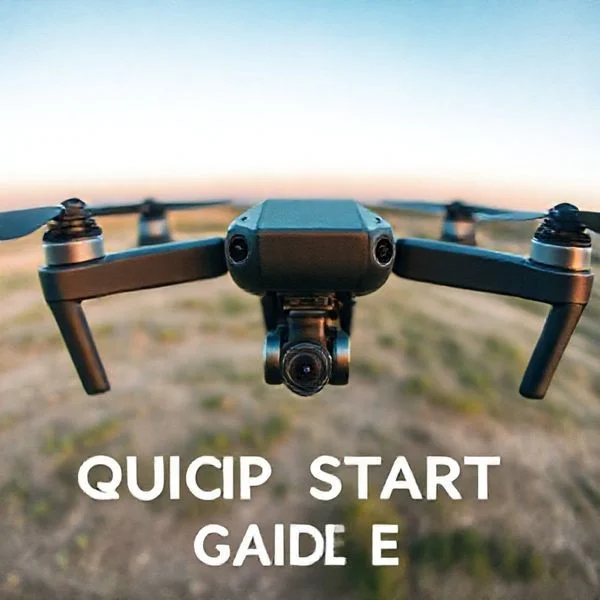
Practicality is the priority here. You are likely standing in a field or park ready to fly, so this guide bypasses the technical jargon and goes straight to the hardware. By following the color-coded propeller system and the specific arm-unfolding order, you will ensure the drone is structurally sound. Proper setup not only protects your investment but also ensures the built-in flight controller can accurately calibrate its internal sensors for a stable, hands-free hover.


Understanding Essential Hardware and Camera Compatibility


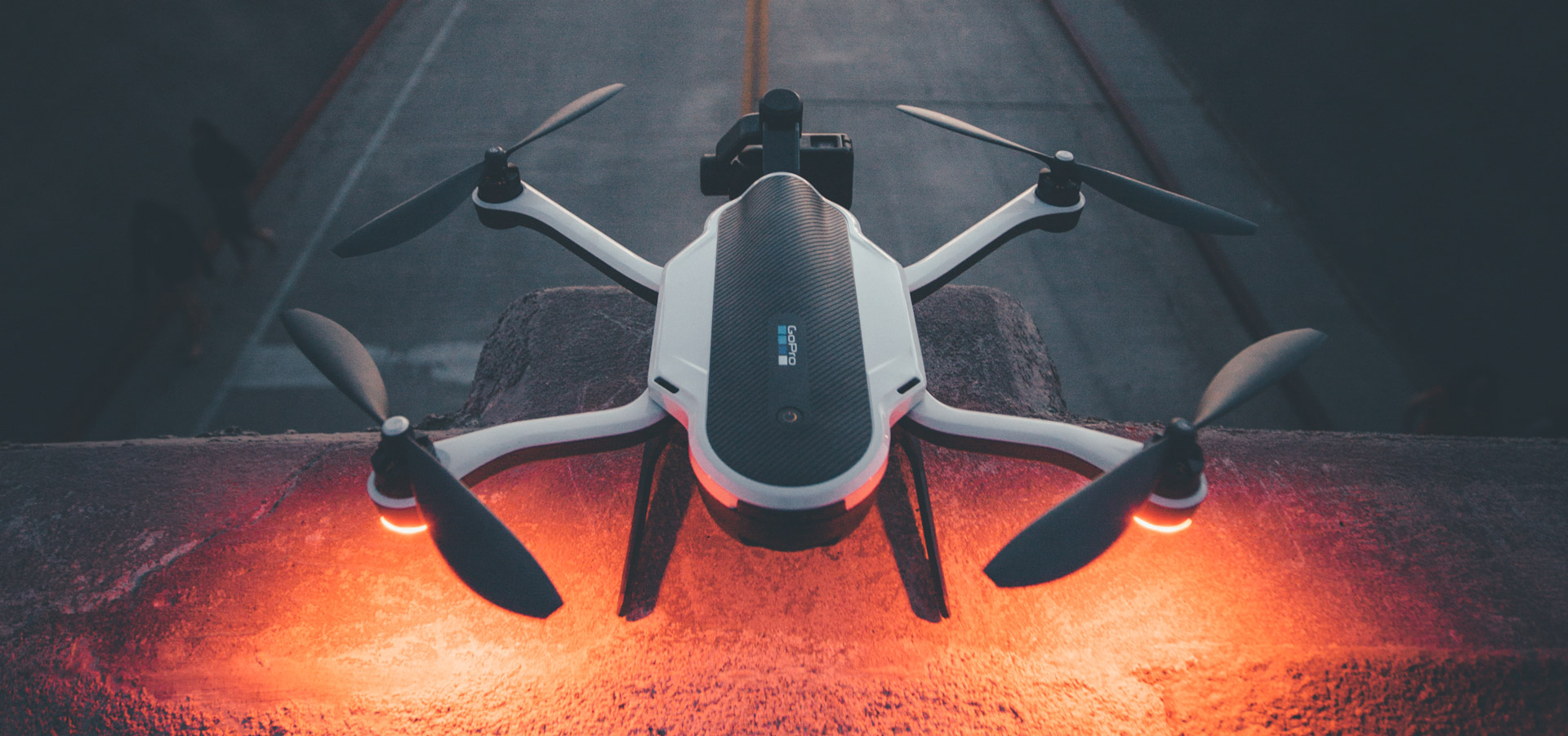
The GoPro Karma is a modular system, which is its greatest strength and its most common point of failure for new users. Before you even touch the power button, you must ensure your camera is physically and electronically bridged to the drone’s brain via the Karma Harness. The drone body itself is rugged, but the connection points for the stabilizer and the camera are sensitive to dust and misalignment.

Camera Compatibility and the Harness System
The Karma drone was designed specifically for the HERO Black series. Out of the box, it is most compatible with the HERO5, HERO6, and HERO7 Black models. Each of these cameras fits into the Karma Harness, which provides both power to the camera and a data link to the controller. If you are using a HERO7 Black, ensure you have the correct harness, as the side door must be removed for the camera to slide into the USB-C and Micro-HDMI ports.


- HERO5/6/7 Black: Fully compatible with standard harnesses.
- HERO4 Black/Silver: Requires a specific legacy harness and a different counterweight.
- HERO8/9/10/11/12: These models are not natively compatible with the Karma gimbal due to size changes and mounting designs.
The Mechanical Unfolding Sequence


To maintain the structural integrity of the Karma, you must unfold the arms in a specific order. Always start with the front arms. Swing them out until you hear a distinct metallic click. Once the front arms are locked, move to the rear arms. If the rear arms feel stuck, do not force them; ensure the landing gear is folded up first. After the arms are out, flip the landing gear down until it snaps into place. This creates a stable tripod base for the drone to sit on during the GPS acquisition phase.
Everything You Need to Know About the GoPro Karma Drone
The GoPro Karma is a unique, modular aerial system designed to integrate seamlessly with your action camera, but because it lacks the automated obstacle avoidance found in newer drones, a proper setup is critical for a successful flight. This guide covers everything from the initial unboxing and component charging to the crucial calibration steps and your first takeoff. Following these steps ensures that your hardware is secure, your software is updated, and your flight remains stable, preventing common issues like “flyaways” or gimbal vibration. Whether you are a seasoned pilot or a first-time flyer, mastering these fundamentals is the key to capturing professional-grade aerial cinema without risking your equipment.
Step 1: Unboxing and Component Inventory
What you need: The GoPro Karma case, Karma Core (drone body), Karma Controller, Karma Stabilizer, and your compatible GoPro camera (Hero 5, 6, or 7 Black).
Instructions: Start by laying the Karma case on a flat surface and opening it fully. Remove the Karma Core and inspect the four motor arms and landing gear for any signs of damage during transit. Identify the Karma Controller, which features a built-in touch display. Locate the Karma Stabilizer (the gimbal) and the Harness, which is specific to your camera model. It is essential to ensure you have the correct harness for your specific GoPro version, as the connector pins differ between the Hero 4 and the Hero 5/6/7 series. Verify that you have two sets of propellers: the silver-nut propellers and the black-nut propellers, which correspond to specific motors on the drone.
Pro Tip: Do not discard the Karma backpack; it is specifically molded to protect the drone’s delicate gimbal and arms, and using third-party bags can often lead to bent motor shafts.
Step 2: The Critical Charging Phase
What you need: Karma Battery, Karma Controller, and the Karma Charger (provided in the box).
Instructions: The GoPro Karma uses a high-capacity Lithium-Polymer (LiPo) battery that requires specific handling. Plug the Karma Charger into a wall outlet and connect the proprietary large connector to the Karma Battery. Simultaneously, use the USB-C cable attached to the charger to plug into the bottom of the Karma Controller. Charging a fully depleted battery typically takes about 2 hours, while the controller takes approximately 3 hours. Pay attention to the LED lights on the battery; they will pulse during charging and turn solid/off when full. It is vital to charge both components to 100% before your first flight to ensure the flight controller has enough power to perform initial GPS locks and firmware updates.
Pro Tip: Avoid charging the battery immediately after a flight when it is still warm; allow it to cool for 20 minutes to extend the overall lifespan of the chemical cells.
Step 3: Preparing the Karma Core and Propellers
What you need: The drone body and the set of 4 propellers (2 silver, 2 black).
Instructions: Unfold the landing gear until they click into place. Next, swing out the front arms, followed by the rear arms. Ensure each arm is locked securely. Now, look at the motors; you will notice that two have silver rings and two have black rings. Match the silver-nut propellers to the silver motors and the black-nut propellers to the black motors. This is a “push-and-twist” system. You do not need tools to tighten them; simply hand-tighten them firmly in the direction indicated by the icons on the blades. The counter-clockwise and clockwise threading ensures the propellers tighten themselves further during flight, but they must be snug before the motors spin up.
Pro Tip: Always run your finger along the edge of each propeller before flight to check for small nicks or cracks; even a tiny chip can cause vibrations that ruin your video footage.
Step 4: Mounting the Camera and Stabilizer
What you need: GoPro camera, Karma Harness, and the Karma Stabilizer (Gimbal).
Instructions: Open the side door of your GoPro (if using Hero 5/6/7) to expose the ports, or remove the door entirely if required by your specific harness model. Slide the camera into the harness and ensure the USB-C and Micro-HDMI connectors are firmly seated. Close the harness side-lock. Next, locate the circular mounting port on the nose of the Karma drone. Insert the stabilizer into this port and rotate the locking ring clockwise until it clicks. This mechanical lock is what provides power to the camera and allows the controller to trigger recording. Ensure the camera is balanced and the gimbal moves freely before powering on the unit.
Pro Tip: Never power on the drone without the camera and stabilizer properly installed, as the gimbal motors may spin wildly trying to find a center of gravity, which can cause internal motor burnout.
Step 5: Powering On and Firmware Synchronization
What you need: Fully assembled drone, controller, and a stable Wi-Fi connection.
Instructions: Press and hold the Power button on the Karma Controller until the screen illuminates. Once the controller is booted, press the Power button on the top of the Karma drone. The drone will emit a series of beeps and the lights will flash. Follow the on-screen prompts on the controller to connect to a local Wi-Fi network. The system will automatically check for firmware updates for the drone, the controller, and the camera itself. It is paramount that you complete these updates before flying, as GoPro released several “stability patches” that are mandatory for flight safety. Follow the prompts to download and install; the drone may restart several times during this process.
Pro Tip: Keep the drone and controller within three feet of each other during the update process to prevent a signal drop that could corrupt the firmware installation.
Step 6: Compass and IMU Calibration
What you need: An outdoor area clear of large metal structures or magnetic interference.
Instructions: On the controller, navigate to the “Service” menu and select “Calibration.” You will be prompted to perform the “Compass Calibration,” often called the “Karma Dance.” Pick up the drone and rotate it 360 degrees horizontally until the controller beeps, then rotate it vertically (nose down) 360 degrees. Finally, rotate it sideways. The screen will give you a green checkmark once successful. This step synchronizes the drone’s internal magnetometers with the Earth’s magnetic field, which is essential for the “Return to Home” feature to work correctly. If the calibration fails, move away from cars, reinforced concrete, or power lines and try again.
Pro Tip: If you travel more than 50 miles from your last flight location, you should always recalibrate the compass to account for changes in magnetic declination.
Step 7: The Built-in Flight Simulator
What you need: The Karma Controller.
Instructions: Before you spin the props for real, GoPro has integrated a high-quality flight simulator into the controller. Access this through the “Learn” section on the home screen. This simulation uses the actual joysticks of the controller to mimic the physics of the Karma drone. Spend at least 15 minutes practicing basic maneuvers: taking off, hovering, rotating the drone (yaw), and flying in “circles” (combining pitch and roll). Practice the “Return to Launch” (RTL) button functionality in the sim so you know exactly what to expect when the drone takes over command. This builds muscle memory for the “Mode 2” control scheme, where the left stick controls altitude and rotation while the right stick controls directional movement.
Pro Tip: Practice flying with the “nose” of the drone facing you in the simulator; this “inverted” control orientation is where most beginners panic and crash in real life.
Step 8: First Launch and Basic Flight Controls
What you need: A flat, open field at least 100 feet away from people or obstacles.
Instructions: Place the Karma on a flat surface. On the controller, press and hold the “Start/Stop” button for 3 seconds. The propellers will begin to spin at an idle speed. Gently push the left joystick upward to take off, or use the “Auto-Takeoff” button on the touchscreen. Bring the drone to an altitude of about 10 feet and let it hover for 30 seconds to ensure it has a stable GPS lock (indicated by a green icon on the screen). Use the thumbwheel on the left shoulder of the controller to tilt the camera up and down. Test the “Easy Path” shots like “Dronie” or “Orbit” by selecting them from the “Auto Shot Paths” menu to see the drone perform automated cinematic movements.
Pro Tip: Always keep the drone in your “Line of Sight.” Because the Karma does not have sensors to detect trees or wires, you are the only obstacle avoidance system the drone has.
✅ Final Checklist
- All four propellers are color-matched and hand-tightened to the motors.
- The stabilizer locking ring is fully turned to the “locked” position.
- The battery is fully seated and the latch is clicked shut.
- The controller shows at least 10 GPS satellites connected before takeoff.
- The “Return to Home” altitude is set higher than the tallest obstacle in the area.
Important Notes:
- Safety: Do not fly near airports, over crowds, or in winds exceeding 15 mph. The Karma is a heavy drone and can cause significant damage if it falls.
- Obstacle Avoidance: Remember that the Karma has NO obstacle sensors. It will fly directly into a wall or tree if you command it to or if its Return-to-Home path is obstructed.
- Maintenance: If you experience “Gimbal Horizon Tilt,” use the manual calibration settings in the controller menu while the drone is on a perfectly level surface.
- Estimated Time: Initial setup and updates take approximately 60-90 minutes. First flight should be limited to 15 minutes to allow for a 20% battery safety margin.
Critical Pre-Flight Safety Protocols and Airspace Awareness
Safety on the Karma drone is managed through the integrated “Karma Controller.” Unlike other drones that require a phone or tablet, the Karma’s screen is built-in, providing a direct link to the drone’s flight logs and local airspace data. Before you spin the props, you must satisfy the drone’s internal safety checklist, which includes a compass calibration and a satellite count verification. Failing to do this often leads to “drift,” where the drone moves unexpectedly with the wind.
GPS Lock and Compass Calibration

![[Gigastone] 128GB Micro SD Card, Gaming Plus, MicroSDXC Memory Card for Nintendo-Switch…](https://m.media-amazon.com/images/I/41KuykdJEWL._SS500_.jpg)

The GoPro Karma relies heavily on GPS to maintain its position. When you first place the drone on the ground, the status lights on the arms will blink. Do not attempt to take off until the controller screen shows a “Ready to Fly” message with a green GPS icon. This usually requires a connection to at least 6 to 10 satellites. If you are flying in a new location (more than 20 miles from your last flight), the controller will prompt you for a compass calibration. This involves rotating the drone on its horizontal and vertical axes. Follow the on-screen animations precisely to ensure the drone knows exactly which way is North.


Environmental and Airspace Limits


The Karma is a powerful drone, but it has specific environmental limits you must respect to avoid a crash. Use the built-in map on your controller to check for “No-Fly Zones” or “Flight Restrictions” in your immediate area. The drone’s software will often prevent the motors from starting if you are within five miles of a major airport. Additionally, check the wind speeds before takeoff.
- Max Wind Resistance: 22 mph (10m/s). Avoid flying in gusty conditions.
- Operating Temperature: 32° to 104° F. Cold weather significantly reduces battery life.
- Line of Sight: Always keep the drone visible. The Karma does not have obstacle avoidance sensors.
Before proceeding to the power-on sequence, do a final “tug test” on each arm and landing gear leg. Ensure there are no cracks in the propellers and that the camera lens is clean. A small smudge on the lens will be magnified by the sun once you are at a high altitude. Once the hardware is locked and the environment is clear, you are ready to move to the synchronization phase between the controller and the airframe.
Factors Affecting Battery Life and Controller Range


Understanding the limitations of your GoPro Karma is essential for a stress-free flight. While the official specifications provide a baseline, real-world conditions often dictate how long you can stay airborne and how far you can roam. Being aware of these variables helps you plan your shots without the anxiety of a sudden low-battery warning or a lost signal.
Environmental Impact on Flight Time
The Karma’s battery performance is highly sensitive to the elements. High winds are the most common drain; when the drone fights to maintain its position or head into a stiff breeze, the motors work overtime, significantly reducing your 20-minute flight window. Temperature also plays a massive role. In colder climates, lithium-polymer batteries lose their efficiency rapidly. If you are filming a winter landscape, you might notice the percentage dropping much faster than it would on a summer afternoon.
- Wind Resistance: Expect a 20-30% drop in flight time during gusty conditions as the flight controller compensates for drift.
- Altitude: Thinner air at high altitudes requires the propellers to spin faster to generate lift, consuming more power from the battery.
- Aggressive Maneuvers: Frequent use of the joystick for rapid climbs or constant high-speed passes will deplete the cells much faster than steady, cinematic hovering.
Optimizing Signal Strength and Range
The controller range is largely dependent on a clear “Line of Sight” (LOS). Physical obstructions like thick treelines, concrete buildings, or even rocky outcrops can cause the video feed to stutter or drop entirely. Furthermore, electromagnetic interference from power lines or high-density Wi-Fi areas can shorten the effective range of your Karma controller. For the most reliable connection, always try to fly in “quiet” RF environments away from major infrastructure.


- Antenna Orientation: Always point the flat side of the controller’s lid (where the antennas are housed) directly toward the drone for the best signal reception.
- Avoid “Noise”: Urban environments are full of radio frequency interference; for the best range and the fewest video transmission glitches, wide-open fields are your best friend.
- The “Return to Home” Safety: Remember that if the signal is lost, the Karma is designed to automatically return to its launch point, but keeping a clear line of sight prevents this from happening prematurely.
Expert Tips for Maintaining Karma Accessories and Sensors


The Karma system is unique because it is modular. While this versatility is great for switching between handheld and aerial filming, it means there are more moving parts that require your attention. Proper maintenance ensures the drone remains stable and your footage stays buttery smooth.
Caring for the Karma Stabilizer and Gimbal
The Karma Stabilizer is the heart of your cinematic shots. Because it is removable, the gold-plated contact pins are vulnerable to dust, moisture, and oils from your skin. If your gimbal starts behaving erratically, vibrating, or failing to level, a quick clean often solves the problem. Use a small amount of isopropyl alcohol on a cotton swab to gently wipe the connection points on both the stabilizer and the drone’s internal harness to ensure a perfect data flow.
- Inspect Propellers: Even tiny nicks or cracks can cause micro-vibrations that confuse the internal sensors and ruin your video quality. Replace them immediately if they aren’t pristine.
- Gimbal Guard: Always use the protective plastic cover when the drone is in its case to prevent motor strain during transport.
- Balance Check: Ensure your GoPro is locked tightly into the harness; any slight wiggle can cause the gimbal motors to overheat while trying to compensate.
Sensor Health and Storage Best Practices
The Karma relies on an Internal Measurement Unit (IMU) and GPS to stay level and stationary. If you travel long distances between flight locations, the sensors might need a moment to recalibrate to the local magnetic field. Storing your drone correctly is just as important as how you fly it. Avoid leaving the Karma in a hot car, as extreme heat can degrade the battery cells and potentially warp the plastic housing of the arms or landing gear.
- Firmware Checks: Regularly connect your controller to Wi-Fi. Firmware updates often include “sensor tuning” that improves flight stability and camera communication.
- Dry Storage: Moisture is the enemy of the Karma’s open-vent design. Store the drone with silica gel packets in the case, especially if you have been flying in humid or coastal environments.
- Compass Awareness: Avoid launching from large metal structures or reinforced concrete, as these can interfere with the internal compass and cause “toilet bowl” circling during flight.
Conclusion
Mastering the GoPro Karma Drone is about more than just knowing how to tilt the joysticks. By understanding the external factors that impact your battery and range, and by performing consistent maintenance on your stabilizer and sensors, you ensure every flight is as safe as it is spectacular. This modular system offers incredible creative freedom, provided you treat the hardware with the care it deserves.
Before your next outing, take five minutes to inspect your propellers and wipe down your gimbal contacts. Once your gear is prepped and the weather is clear, you’re ready to capture professional-grade aerial footage. Now, grab your controller, find a wide-open space, and take to the skies!
❓ Frequently Asked Questions
Why is GPS calibration necessary before every flight?
GPS calibration ensures the drone accurately identifies its position and orientation. This prevents drifting and is essential for the Return-to-Home feature to work correctly in an emergency.
Can I fly the Karma drone without the GoPro camera attached?
Yes, the drone can fly without a camera, but you will not have a live video feed or the ability to record footage. It is generally used with the camera for the full aerial photography experience.
What does a flashing yellow light on the Karma mean?
A flashing yellow light typically indicates that the drone has lost its GPS signal or requires a compass calibration. Land the drone immediately if this happens mid-flight.
How does the Karma Passenger App work?
The Passenger App allows a friend to view your live flight feed on their smartphone while you fly. They can even control the camera tilt and settings while you focus on piloting.
What should I do if the gimbal feels loose during assembly?
Check that the stabilizer is fully inserted into the mounting port and the locking ring is rotated completely to the ‘locked’ position. A loose gimbal can cause video vibration or shut down.
How long does the GoPro Karma battery take to charge?
The Karma battery typically takes about 1 hour to reach a full charge, while the controller takes roughly 2.5 hours. Using the included Karma Charger is the fastest method.

Similar Posts